Paste from your clipboard history into any field
No need to open anything: put the cursor in a field and insert a favorite or a recent item from the context menu, or with your own hotkey.
Free. Tags in the context menu: PRO.
About paste into any field
The fastest clipboard manager is the one you don't have to open. Copy History + adds your clipboard history to the right-click menu of every editable field: pick a favorite or one of the latest items and it is inserted where the cursor is.
Keyboard shortcuts make it even faster: paste the 1st, 2nd or 3rd latest item, or the 1st, 2nd or 3rd favorite, without touching the mouse. You set the key combinations yourself in Chrome.
The context menu also works the other way: select a text or a link on a page and add it to your history, as a favorite, with a tag (PRO), or send it to your phone.
Where to set it up
SettingsView OptionsContext Menu (Right Click)
Choose the Pasting Options (Favorite, Latest Items, With Tags), the Actions for Selected Text or Link and Quick Copy from History.
SettingsView OptionsSet Keyboard Hotkeys
Opens
chrome://extensions/shortcuts, where you give each action its own key combination.
How to use it
- 1
Click into a field
Any editable field: a form, an email, a chat, a document.
- 2
Right-click
Choose an item from your favorites or the latest ones in the context menu.
- 3
Or press a hotkey
Paste the 1st, 2nd or 3rd latest or favorite item. Set the keys at
chrome://extensions/shortcuts.
Use cases
Filling the same forms
Sign-up forms, delivery details, job applications: keep your address, email and phone as favorites and fill each field with a right-click.
Replying in chats and email
Insert a ready answer into a chat or an email without opening the extension and without switching tabs.
Moving data between pages
Copy several values on one page, then paste the 1st, 2nd and 3rd latest into the fields of another page with hotkeys.
Tagged sets (PRO)
Tag items by project or by client and paste them by tag right from the right-click menu.
What's inside
- Paste the 1st, 2nd or 3rd latest item by hotkey
- Paste the 1st, 2nd or 3rd favorite by hotkey
- Add the selected text to the history, as a favorite or with a tag (PRO)
- Turn clipboard monitoring on and off with a hotkey
Questions
Works great with
- Text shortcutsType #addr and get your full address. Copy History + is a text expander extension for Chrome: turn any saved text into a shortcut for emails, forms and chats. 5 free, unlimited with PRO.Learn more
- Clipboard historyA clipboard history extension for Chrome: everything you copy is saved automatically. Search it, mark favorites, add tags, group by date or site and paste it again.Learn more
- Send to your phoneA Chrome extension to send any selected text or clipboard item to your phone in one click through Telegram. Links, notes, addresses: right where you need them.Learn more
Try it in Copy History +
Install the extension in a few seconds. It's free, no account needed.
More free extensions from PiDevEx
Small tools that make the browser work for you.
ShortcutAI
Fix, rewrite or translate any text right where you type with //commands and your own AI prompts.
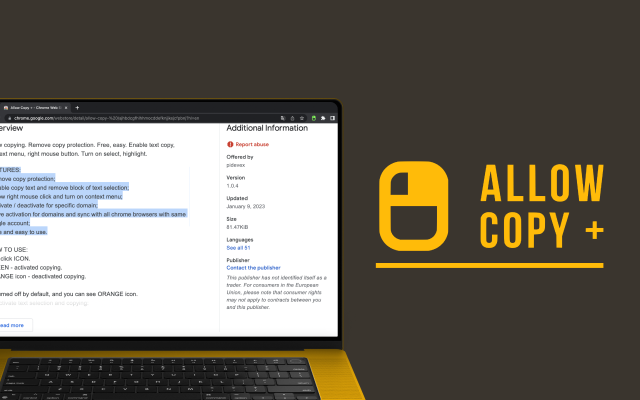
Allow Copy +
Your best helper to copy text from protected websites.
Text From PRO
Text recognizer: get and copy text from images, videos and anywhere in your browser.

Test Bro
AI assistant that helps you with online tests and exams.
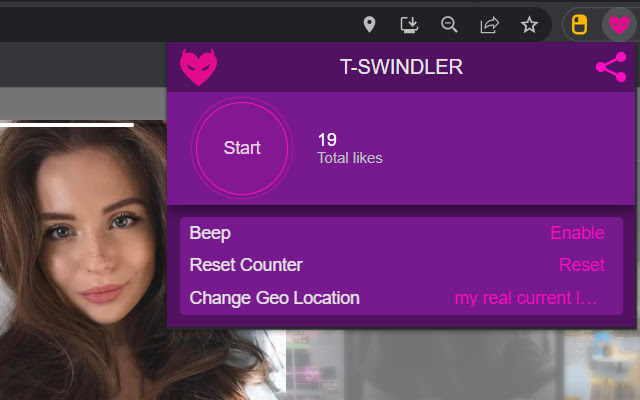
T-Swindler
Extra tools for Tinder in the browser.